PDF troubleshooting
Markdown to PDF: Fix Page Breaks, Tables, and Cut-Off Text
By MDFormats · 7 min read · Published
A table looks fine on screen, but its last column disappears in the PDF. A long command runs past the right edge. Or a new page starts halfway through a section. When converting Markdown to PDF, start with the paper settings and the part that does not fit.
The Markdown to PDF converter lets you choose a page size, orientation, margins and theme. Your browser creates the PDF through its print dialog. The workspace preview scrolls continuously; it does not show every final page boundary. Check the print preview, then open the saved file before sharing it.
On this page
Save Markdown as a PDF in four steps
Keep your original Markdown before making layout changes. If you paste text into the tool, keep another copy somewhere you can find it later.
- Add your document. Paste it into Markdown source, or select Import .md file to open a Markdown file.
- Choose the page settings. Select A4 or Letter to match your paper. Start with Portrait, Normal margins and the Clean theme.
- Open the print dialog. Select Print / Save as PDF, then choose a PDF destination, such as Save as PDF. Check the paper size, orientation and page count. The labels vary by device; Chrome's printing guide explains its basic workflow.
- Save and reopen the file. Check the first page, a middle section and the last paragraph. If you change the Markdown or page settings, save a new PDF and check that copy.
On a phone, choose Markdown only to find the source and page settings. Switch to Print preview only to see the formatted document.
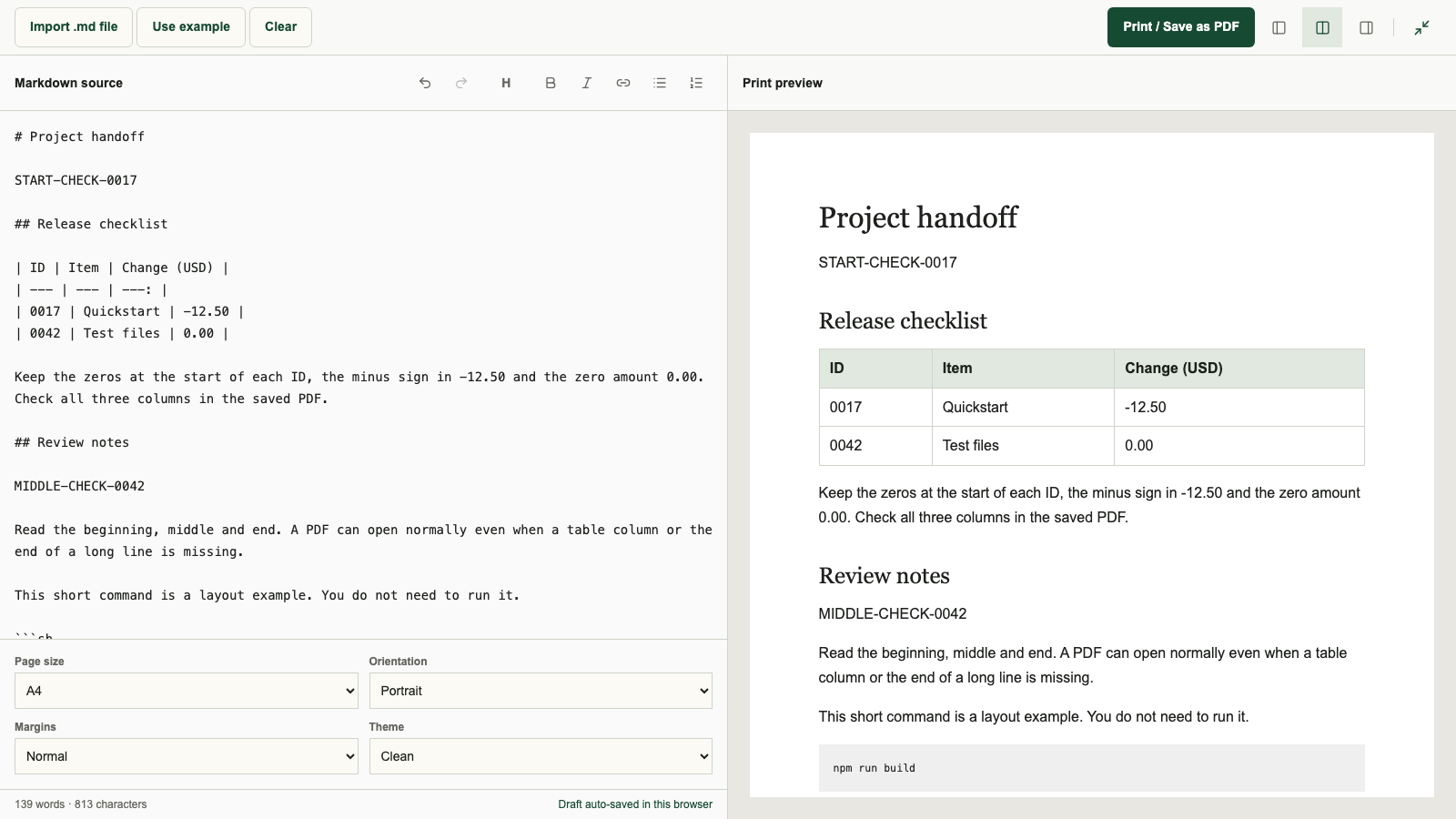
Changing the theme can move lines and page breaks too. Once the file looks right, keep the same settings for the final export.
Try a sample before changing your document
Select Download sample Markdown in the sample panel above, then use Import .md file in the converter to open it. Select Download sample PDF to see the reference copy. That PDF fits on one A4 portrait page, with Normal margins and the Clean theme. Your browser may arrange the pages differently.
This is the sample's short table:
| ID   | Item       | Change (USD) |
| ---- | ---------- | -----------: |
| 0017 | Quickstart |       -12.50 |
| 0042 | Test files |         0.00 |
Look for three columns and two rows below the header. Keep the zeros at the start of 0017 and 0042, the minus sign in -12.50, and the zero amount 0.00. A readable table can still contain a wrong value.
The full sample also has START-CHECK-0017, MIDDLE-CHECK-0042 and END-CHECK-0090 labels. These mark sections of the document, not separate pages. Find each label, then read the text around it and inspect the table.
If the sample works but your document does not, try a copy containing just the troublesome section. That makes it easier to see which change helps.
Make a wide table fit without losing columns
Try Landscape in the converter to turn the page sideways and give the columns more room. A sideways page is also shorter, so the document may need more pages. Check the orientation in the print dialog too. If needed, try Narrow margins next. Change one setting at a time, then inspect the saved PDF.
If columns still run off the page, simplify the table itself:
- Shorten long column headings while keeping their meaning clear.
- Move long explanations below the table and refer to the relevant row.
- Split a large comparison into two tables, keeping an ID or name column in both.
Avoid shrinking the whole document until the numbers become hard to read. A long table may also continue onto another page, even when it fits across the page. Check the rows around each break and confirm that the last row is present.
If the table appears as pipes and dashes instead of cells, check its Markdown first. It needs a header row and the separator row beneath it, as shown above. The Markdown table guide for Word includes more examples and checks for documents you want to keep editable.
Keep long code lines from running off the page
A code block can be wider than the paper. A horizontal scrollbar in the workspace is a reason to check the saved PDF carefully: text visible by scrolling on screen may be cut off in print.
Here is a short example you can use to check the code styling. You do not need to run it.
## A short command

```sh
npm run build
```
For your own document, try Landscape first. If a line is still too long, shorten an explanatory example or put a long value in a separate file. Keep the complete original available to anyone who needs to copy it.
Keep working commands intact. Adding a line break in the wrong place can make a command fail or change what it does.
Start a section on a new page
If a chapter needs to start on a new page, finish the layout in Word. MDFormats does not currently have a control for adding manual PDF page breaks.
- Bring your original Markdown to Markdown to Word and download the DOCX.
- Open it in Word and insert a page break before the section that should start on a new page.
- Save a PDF from Word and check the result.
The Markdown to Word guide explains the conversion step. You need to copy or import your source into that tool yourself.
Adding three dashes (---) in Markdown draws a dividing line here. It does not start a new page. The markers <!-- pagebreak --> and \newpage do not force page breaks in this converter either.
Check blank pages and missing content
If the saved file is blank or incomplete, first check that your text appears in the tool's preview. Then check the print dialog's page selection: select all pages for the whole document. If you previously chose a range such as pages 1–2, later pages may be left out.
For other problems, use the symptom to choose the next check:
| What you see | What to try |
|---|---|
| A large gap before a table or code block | The browser may have moved the block to the next page. Shorten it or divide it into smaller sections. |
| An unexpected blank page | Compare the dialog's page count with the saved file. Try the sample, then add your document's sections back to find where the extra page appears. |
| A missing picture | Check that the picture has loaded in the workspace. Importing an MD file does not attach image files stored beside it on your computer. |
| Different page breaks on another computer | Compare paper size, orientation, margins and print scale. Fonts and browser differences can also change the layout. |
Before trying the built-in example, keep a copy of your document: Use example replaces the current text, and Clear removes it.
Frequently asked questions
Does the PDF download as soon as I click the button?
No. Print / Save as PDF opens the browser or system print dialog. Choose a PDF destination there and finish saving the file. The exact controls depend on your device.
How do I remove the website address or date from the PDF?
Look for a headers and footers option in the print dialog, if your browser provides one, and turn it off. Check the saved file to confirm the extra text is gone.
Why is a long table or code block split across pages?
It may be taller than one page. Divide a long table into labeled sections or split an example at a sensible point. Trying to keep a very large block together can leave an awkward gap before it.
Does editing the Markdown update a PDF I already saved?
No. Return to the converter, make your changes and save a new PDF. Open the new copy so you do not accidentally send the earlier version.
Open the saved PDF before sharing it
After converting Markdown to PDF, open the new file and check every table column, the ends of long code lines, pictures and the final paragraph. Keep the original Markdown so you can make corrections and save another copy if needed.