Markdown basics
How to Open an MD File: Read It on Your Computer or Phone
By MDFormats · 6 min read · Published
An .md file is usually a Markdown document: ordinary text with a few marks for headings, lists and other formatting. To open an MD file and read it as a page, use a Markdown viewer. You can do this in a browser on your computer or phone.
The Markdown Viewer opens a file you already have, or lets you paste its text. Start with the steps below. You can read the document without changing its format or installing another app.
On this page
How to open an MD file online in three steps
- Open the Markdown Viewer. Have the MD file saved somewhere you can find, such as your Downloads folder.
- Choose Open .md File and select your file. On a computer, you can also drag it into the workspace. The viewer accepts
.md,.markdownand.txtfiles. - Read the preview. Look for the document's title, any lists or tables, and its final paragraph. Use Fullscreen reading if you want more room.
If someone sent you Markdown as text rather than an attachment, choose Paste Markdown. Paste the text into Markdown source, then choose the Markdown preview view to read it.
Opening another file replaces the document currently shown in the viewer. Download any changes you want to keep before you open a different file, choose Use Example, or select Clear.
Open an MD file on your phone
Save the attachment to your device first, then open the viewer in your browser. Tap Open .md File and find the saved file in your phone's file picker. The folder names depend on your device and where you saved it.
The viewer starts in preview mode on a phone. For copied text, use Paste Markdown, paste into the input area, then return to Markdown preview.
A wide table may need a sideways scroll inside the document. Check its last column before assuming anything is missing.
Try a small meeting-note example
Choose Download sample Markdown in the example panel above, then open that download in the viewer. You can also copy this example and use Paste Markdown:
# Team meeting notes

The next meeting is on **Friday**.

## To do

- Confirm the time
- Share the agenda

## Progress

| Task | Status |
| --- | --- |
| Book a room | Done |
| Send invitations | Pending |

Keep these notes for the next meeting.
You should see a main title, the word Friday in bold, two list items, and a table with two columns and two rows below its header. The final sentence should appear below the table.
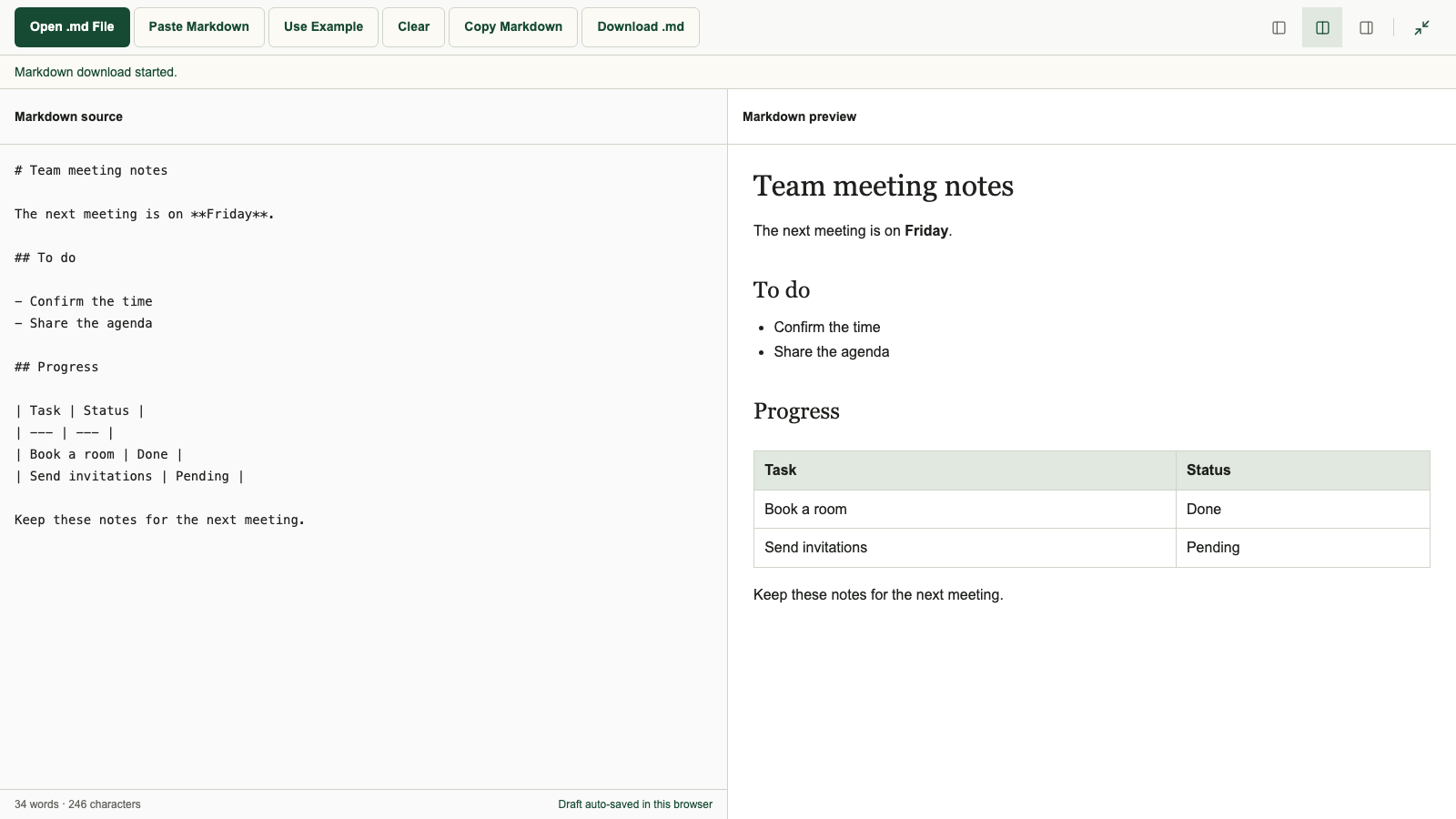
If this sample reads correctly but your file does not, start with the part of your document that looks wrong.
Why do I see # and ** in the file?
Those characters tell a Markdown app how to format the text. A line starting with # is a heading; a word between two pairs of asterisks is bold. They are part of the file, so seeing them in a text editor does not mean the file is broken.
Choose a preview when you want to read the formatted page. Choose the source when you want to change the words or inspect the marks around them. On a computer, Source and preview lets you see both together.
A text editor such as Notepad or TextEdit can be useful for inspecting the file's text. If you already use VS Code, it also has a built-in Markdown preview. You do not need a coding app just to read one document.
Make a change and save a new MD file
In the viewer, choose Paste Markdown to show the source area. In the sample, change the status of Send invitations from Pending to Ready. Return to the preview and check that the right table cell changed.
Choose Download .md to save the current text. Open the downloaded copy once more and check that it still says Ready. Your browser may add a number to the filename if you already have a file with that name.
The download is a separate file. Editing in the viewer does not write over the original on your computer or phone. A saved browser draft can help you return to your work, but keep a downloaded copy of anything you need later.
For longer edits, the Markdown Editor has writing and find-and-replace tools. To save an MD file after using that editor, copy the finished source into the viewer and choose Download .md. The editor does not have its own MD download button, and the two tools keep separate drafts.
Fix common viewing problems
The whole document looks like a block of code. Text copied from a chat may include an extra set of three backticks around the entire answer. Check the start and end. Remove those outer marks only if they are wrapping the whole document; keep any marks used around real examples inside it.
A table shows as lines and vertical bars. Check for the separator row below the headings, such as | --- | --- | in the sample. Each row should have the same number of columns.
Pictures are missing. This viewer shows image descriptions and addresses instead of loading the pictures. Also, selecting an MD file does not bring along a nearby images folder. If you need those pictures, ask the sender for the related files or a complete Word or PDF copy.
Some text is unreadable. Keep the original file. If the sender still has a readable copy, ask them to send it again. A file saved with a different text encoding may need to be reopened using the correct encoding; avoid repeatedly saving over your only copy. The supplied sample uses UTF-8.
A formula or diagram stays as text. Viewers support different features. This viewer handles everyday headings, lists, tables and code blocks, but does not draw mathematical formulas or Mermaid diagrams. Check the file in the app it was made for when those features matter.
Share a Word or PDF copy when you need one
For someone who wants to edit in Word, open your latest MD file in Markdown to Word and download a DOCX. The Markdown to Word guide explains the steps and what to check afterward.
For a reading copy with pages, use Markdown to PDF. The PDF layout guide covers wide tables, page breaks and cut-off text. Open the saved PDF before sharing it.
These links open separate tools; your viewer contents do not move automatically. If you made changes, select the MD you just downloaded or copy the current source text into the other tool. Renaming notes.md to notes.docx or notes.pdf does not convert the document.
Frequently asked questions
How do I open an MD file in Word?
Convert it to DOCX first if you want formatted headings, lists and table cells. Then open the DOCX in Word and check it. Opening the MD as plain text will not do that conversion.
Can I read an MD file without an internet connection?
A text editor installed on your device can read a local Markdown file offline. Load an online viewer while connected; do not rely on being able to open the website for the first time without a connection.
Are .md and .markdown files different?
Both extensions are commonly used for Markdown text. This viewer accepts either. The filename alone does not guarantee the contents are readable Markdown, so ask the sender if the file still looks wrong in a text editor.
Keep the copy you want to use again
To open an MD file, start with the viewer and check that the document is complete. If you make changes, download the updated MD and reopen it. Keep that source file alongside any Word or PDF copy so you can make the next change easily.